艺术
美容与健康
工艺
文化与历史
娱乐
环境
食品与饮料
绿色未来
逆向工程
科学
体育
技术
可穿戴设备

Blinking LED — Your First Arduino Project
The classic first electronics project! Build a blinking LED circuit using an Arduino, a breadboard, a resistor, and a single LED. Perfect for absolute beginners — no soldering required.
说明
1
1
Gather Your Components
Collect all components from the BOM list below. You need:
No soldering is needed for this project. Everything plugs into the breadboard.
- Arduino Uno R3 — the microcontroller brain
- 1x 5mm LED (any color)
- 1x 220-ohm resistor (red-red-brown-gold bands)
- 1x Breadboard — solderless prototyping board
- 2x Jumper wires (male-to-male)
- 1x USB-B cable — connects Arduino to your computer
No soldering is needed for this project. Everything plugs into the breadboard.
2
2
Circuit Schematic
Circuit Schematic
This is the electronic schematic for the blinking LED circuit. The signal flows from Arduino Pin 13 through a 220-ohm current-limiting resistor (R1), through the LED (D1), and to ground (GND). The resistor prevents too much current from burning out the LED.
Loading KiCanvas viewer...
Professional PCB Design Viewer
3
3
Wire It Up
Wire It Up
Follow these connections:
Tip: The resistor can go on either side of the LED — it just needs to be in series.
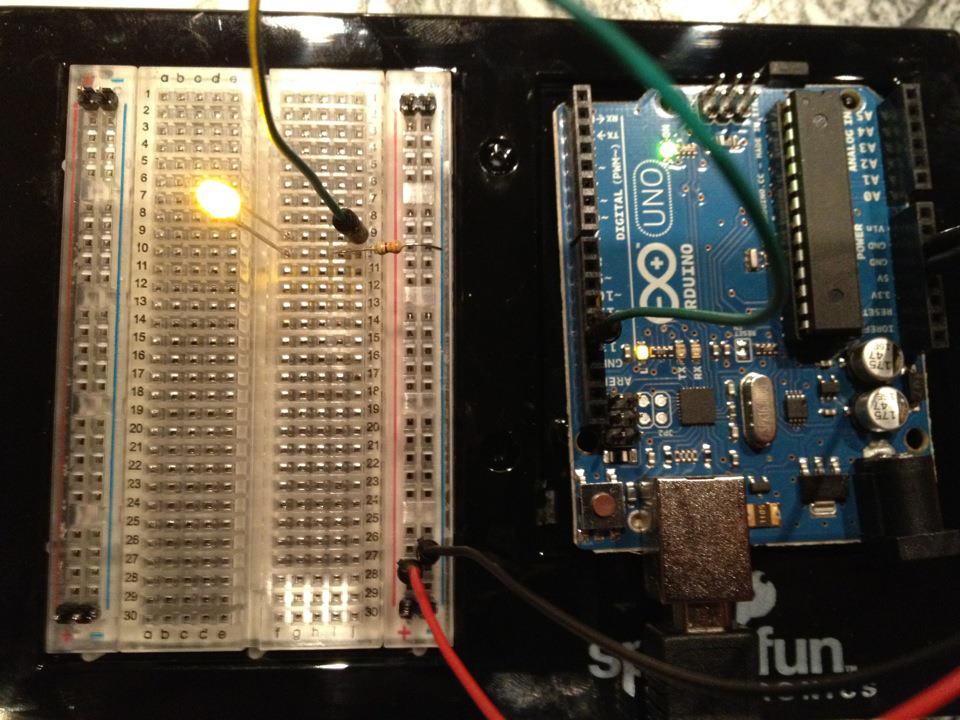
- Insert the LED into the breadboard. Long leg (anode +) in one row, short leg (cathode -) in the next row.
- Insert one leg of the 220-ohm resistor into the same row as the LED cathode (short leg). The other leg goes into a separate row.
- Use a jumper wire to connect the LED anode row to Arduino Pin 13.
- Use another jumper wire to connect the resistor's free row to any Arduino GND pin.
Tip: The resistor can go on either side of the LED — it just needs to be in series.
4
4
Upload the Blink Code
Connect the Arduino to your computer with the USB cable. Open Arduino IDE, paste this code, select your board (Tools > Board > Arduino Uno), and click Upload.
blink.inoarduino
// Blinking LED — Your First Arduino Project
// Turns an LED on for one second, then off for one second, repeatedly.
const int LED_PIN = 13; // Pin connected to the LED
void setup() {
pinMode(LED_PIN, OUTPUT); // Set pin 13 as an output
}
void loop() {
digitalWrite(LED_PIN, HIGH); // Turn LED ON
delay(1000); // Wait 1 second
digitalWrite(LED_PIN, LOW); // Turn LED OFF
delay(1000); // Wait 1 second
}
// EXPERIMENT IDEAS:
// - Change delay(1000) to delay(100) for fast blinking
// - Change delay(1000) to delay(2000) for slow blinking
// - Try delay(50) for a strobe effect
// - Use different values for ON and OFF times:
// delay(200) ON, delay(800) OFF = short flash
// delay(800) ON, delay(200) OFF = long flash
5
5
PCB Layout (Reference)
This is what the circuit looks like as a printed circuit board (PCB) layout. For this beginner project you do not need a PCB — the breadboard works perfectly. But this shows you how the same circuit would look if manufactured as a real board.
Loading KiCanvas viewer...
Professional PCB Design Viewer
6
6
Test and Experiment
Test and Experiment
If the LED blinks: Congratulations! You just programmed hardware.
Troubleshooting:
Next experiments:
Troubleshooting:
- LED does not light up? Check the LED orientation — flip it around. The long leg should connect toward Pin 13.
- LED stays on but does not blink? Make sure you uploaded the code successfully (check for errors in Arduino IDE).
- Nothing happens? Check your wiring matches the schematic in Step 2. Verify the USB cable is connected.
Next experiments:
- Change the
delay()values in the code to control blink speed - Try adding a second LED on Pin 12
- Replace the LED with an RGB LED
材料
- •Arduino Uno R3 - 1 piece占位符
- •5mm LED (any color) - 1 piece占位符
- •220 ohm Resistor (1/4W) - 1 piece占位符
- •Breadboard - 1 piece占位符
- •Jumper Wires (Male-to-Male) - 2 piecess占位符
- •USB-B Cable - 1 piece占位符
所需工具
- Computer with Arduino IDE
- Wire Strippers占位符
CC0 公共领域
此蓝图以 CC0 协议发布。你可以自由复制、修改、分发和使用此作品,无需征得许可。
通过购买蓝图中的产品支持创客,他们将获得 创客佣金 (由供应商设定),或创建此蓝图的新版本并将其作为连接包含在你自己的蓝图中以分享收入。