

Reading a Temperature Sensor — SIK Circuit 7
说明
Parts & Introduction
Parts & Introduction
The TMP36 is an analog temperature sensor that outputs a voltage proportional to temperature. You'll learn to use the Serial Monitor to display real-time readings — an essential debugging tool.
Parts Needed
- 1x Arduino Uno + USB cable
- 1x Breadboard
- 1x TMP36 Temperature Sensor
- 5x Jumper Wires
Warning: The TMP36 looks similar to the transistor. Look for "TMP" in tiny letters and a triangle logo. The transistor has "222" printed on it. Inserting the wrong component can damage it!
此步骤所需材料:
 SparkFun 发明家套件 - V3.21 套件
所需工具:
 装有 Arduino IDE 的电脑
Hardware Hookup
Hardware Hookup
Wiring Instructions
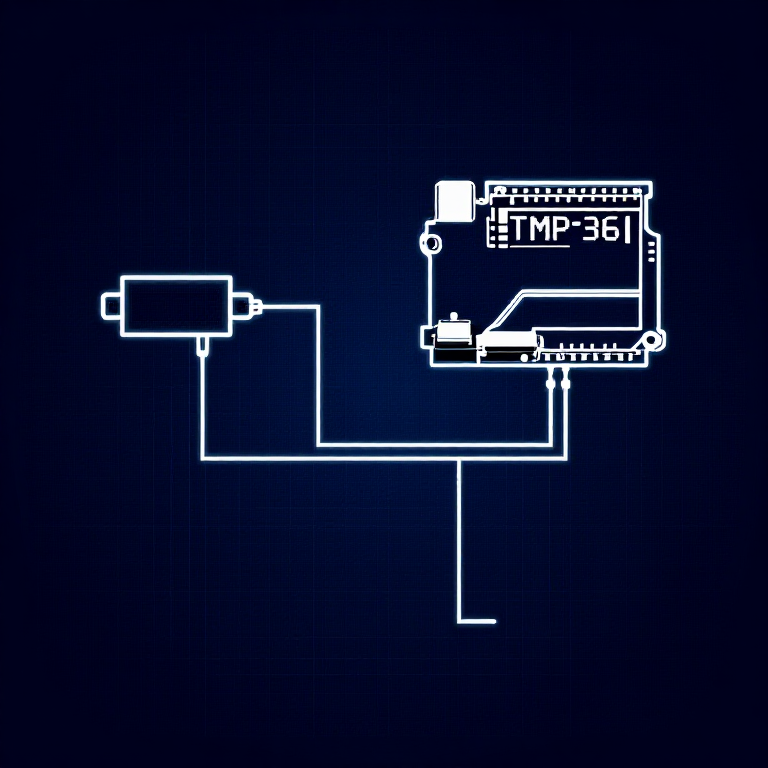
With the TMP36 flat side facing you and pins pointing down, the pins are (left to right): 5V, Signal, GND.
- Connect the left pin to 5V.
- Connect the middle pin (signal) to Analog Pin A0.
- Connect the right pin to GND.
That's it — just 3 wires! The TMP36 can only be connected in one direction. Double-check before powering on.
此步骤所需材料:
 面包板1 个
 跳线3 个
跳线3 个Arduino Code
Arduino Code
Open the Arduino IDE and upload the following sketch to your Arduino board.
此步骤所需材料:
 Arduino Uno R31 个
所需工具:
装有 Arduino IDE 的电脑Test & Experiment
Test & Experiment
What You Should See
Open the Serial Monitor (magnifying glass icon in Arduino IDE, or Ctrl+Shift+M). You'll see lines updating once per second:
voltage: 0.73 deg C: 23.24 deg F: 73.84
Troubleshooting
- Nothing happens: Open the Serial Monitor! The output goes there, not to the LEDs.
- Gibberish text: Set the Serial Monitor baud rate dropdown to 9600.
- Temperature unchanged: Pinch the sensor with your fingers to warm it up, or apply ice to cool it down.
Experiments to Try
- Add an LED that turns on above a temperature threshold (like a heat warning).
- Log data over time to see temperature trends.
- Combine with the LCD (Circuit 15) to display temperature without a computer.
CC0 公共领域
此蓝图以 CC0 协议发布。你可以自由复制、修改、分发和使用此作品,无需征得许可。
通过购买蓝图中的产品支持创客,他们将获得 创客佣金 (由供应商设定),或创建此蓝图的新版本并将其作为连接包含在你自己的蓝图中以分享收入。