

Reading a Photoresistor — SIK Circuit 6
Anweisungen
Parts & Introduction
Parts & Introduction
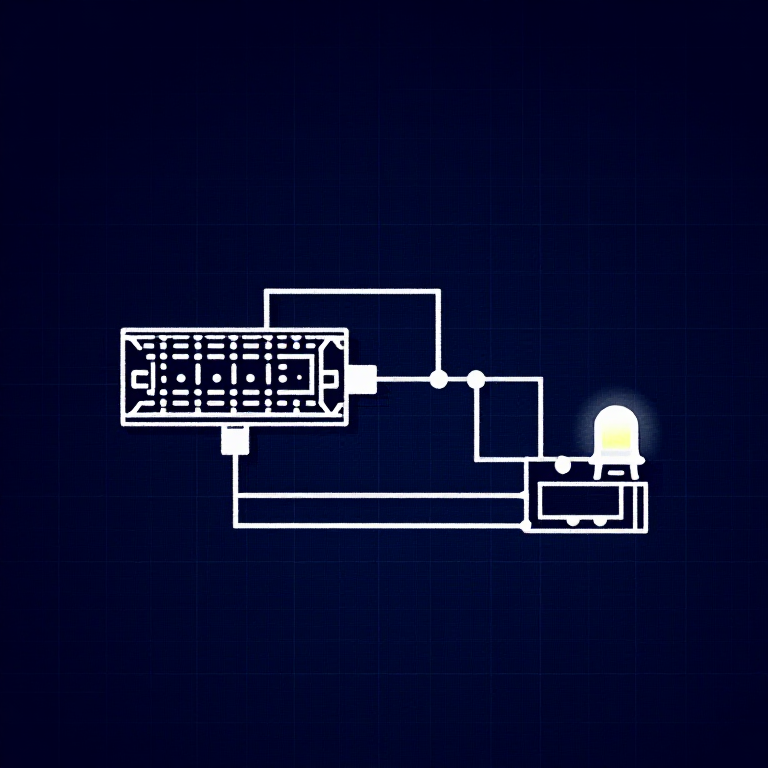
A photoresistor (or LDR — Light Dependent Resistor) changes resistance based on light levels. Combined with a fixed resistor, it forms a voltage divider that the Arduino can read as an analog value. You'll use this to control LED brightness automatically.
Parts Needed
- 1x Arduino Uno + USB cable
- 1x Breadboard
- 1x Photoresistor
- 1x LED (any color)
- 1x 330Ω Resistor
- 1x 10KΩ Resistor (for voltage divider)
- 6x Jumper Wires
Materialien für diesen Schritt:
 SparkFun Inventor's Kit - V3.21 Set
Benötigte Werkzeuge:
 Computer mit Arduino-IDE
Hardware Hookup
Hardware Hookup
Wiring Instructions
- Connect one side of the photoresistor to 5V.
- Connect the other side to Analog Pin A0.
- Connect a 10K resistor from Analog Pin A0 to GND (this completes the voltage divider).
- Connect the LED positive leg to Digital Pin 9 (PWM-capable).
- Connect the LED negative leg through a 330Ω resistor to GND.
The voltage divider produces a voltage proportional to light level, which the Arduino reads as 0-1023.
Materialien für diesen Schritt:
 Steckbrett1 Stück
 Steckbrücken5 Stück
Arduino Code
Arduino Code
Open the Arduino IDE and upload the following sketch to your Arduino board.
Materialien für diesen Schritt:
 Arduino Uno R31 Stück
Benötigte Werkzeuge:
Computer mit Arduino-IDETest & Experiment
Test & Experiment
What You Should See
The LED brightness changes based on ambient light. Cover the photoresistor to dim or brighten the LED (depending on orientation).
Troubleshooting
- LED stays dark: Check LED polarity. Also verify the photoresistor is in the circuit correctly.
- Not responding to light: The photoresistor spacing is non-standard — make sure both legs are making good contact.
- Subtle changes: Try using a flashlight or covering the sensor completely for more dramatic results.
Experiments to Try
- Uncomment
autoTune()to let the Arduino automatically calibrate to your lighting conditions. - Use the sensor to trigger actions at specific light thresholds (e.g., turn on a "night light" when dark).
Materialien
8- SparkFun Inventor's Kit - V3.210% Provision1 Set€95.47
- Platzhalter
- Platzhalter
- Platzhalter
- 1 StückPlatzhalter
- Platzhalter
- 1 StückPlatzhalter
- Platzhalter
Benötigte Werkzeuge
1- Platzhalter
CC0 Gemeinfrei
Dieser Blueprint ist unter CC0 veröffentlicht. Sie dürfen dieses Werk für jeden Zweck frei kopieren, ändern, verbreiten und verwenden, ohne um Erlaubnis zu fragen.
Unterstützen Sie den Maker, indem Sie Produkte über seinen Blueprint kaufen, wo er eine Maker-Provision von Anbietern festgelegt, verdient. Oder erstellen Sie eine neue Iteration dieses Blueprints und verbinden Sie ihn in Ihrem eigenen Blueprint, um Einnahmen zu teilen.