
Building an Air-Quality Monitor
Build a traffic-light air-quality monitor. An MQ-135 sensor responds to smoke, fumes, alcohol, CO2 and other gases; the Arduino compares the reading to clean air and lights a green, yellow or red LED for good, moderate or poor air. A hands-on way to watch indoor air change — with the honest limit that it shows RELATIVE quality, not a calibrated ppm figure.
Instrucciones
Wire the sensor and three LEDs
Wire the sensor and three LEDs
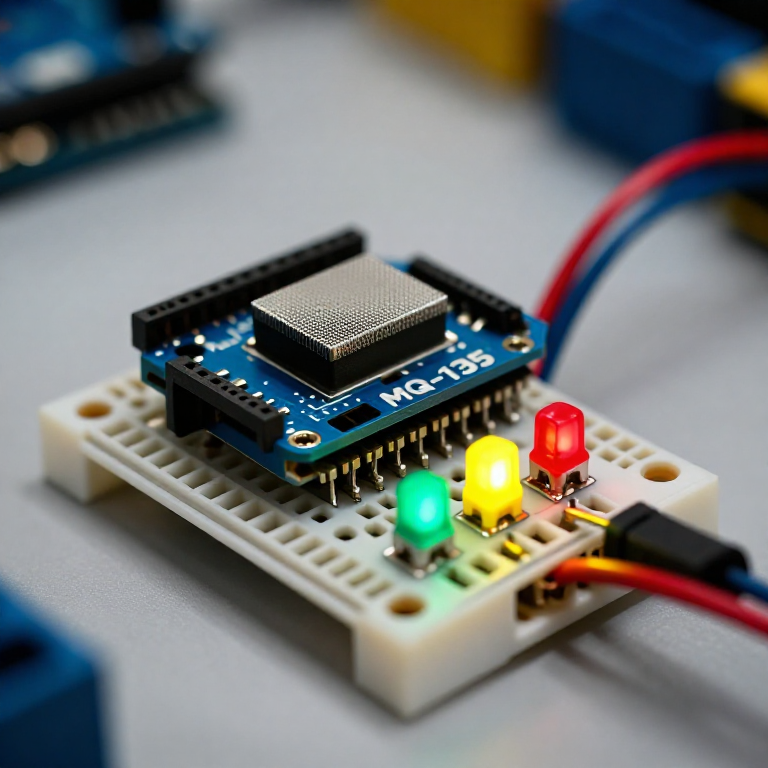
On the breadboard: MQ-135 VCC to Arduino 5V, GND to GND, and its analog output (AOUT) to A0. Wire three LEDs — ideally green, yellow and red — to pins 5, 6 and 7, each through a 330 Ω resistor to GND (long leg to the pin).
Materiales para este paso:
 Arduino Uno R31 pieza
 Módulo sensor de calidad del aire MQ-1351 pieza
 LED de 5 mm1 paquete
 Resistencia de 330 ohmios1 paquete
 Placa de pruebas1 pieza
 Cables de puente1 paquete
Connect and open the IDE
Connect and open the IDE
Plug the Arduino into your computer with the USB cable, open the Arduino IDE, and select Arduino Uno and its serial port.
Herramientas necesarias:
 Ordenador con el IDE de Arduino
 Cable USB-B
Upload the traffic-light sketch
Upload the traffic-light sketch
Paste this sketch and upload. It warms the sensor, records a clean-air baseline, then lights green for good air, yellow for moderate and red for poor. Open the Serial Monitor to see the raw reading.
Warm up, baseline and test
Warm up, baseline and test
Run it in fresh air and let the 2-minute warm-up set the baseline (a new MQ-135 also needs a 24–48 h burn-in to settle). Then test it: breathe on it, spray a little deodorant nearby, or hold a blown-out match's smoke close — it should climb to yellow then red, and return to green in clean air. Tune MODERATE and POOR to change the thresholds.
Know the limits
Know the limits
The MQ-135 reacts to many gases at once and gives a RELATIVE reading, not a calibrated CO2 or ppm value — despite what some tutorials claim, real ppm needs proper calibration against known concentrations. It also drifts and needs re-baselining. Treat this as an air-change indicator and a great sensing project, not a laboratory instrument.
Materiales
6- Marcador de posición
- Marcador de posición
- Marcador de posición
- 1 paqueteMarcador de posición
- Marcador de posición
- Marcador de posición
Herramientas requeridas
3- Marcador de posición
- 1 vendor sell this, none ship to you yetMarcador de posición
- 1 vendor sell this, none ship to you yetMarcador de posición
Blueprints relacionados
Estos blueprints comparten conocimiento — técnicas, materiales o principios
CC0 Dominio público
Este Blueprint se publica bajo CC0. Eres libre de copiar, modificar, distribuir y usar este trabajo para cualquier propósito, sin pedir permiso.
Apoya al Maker comprando productos a través de su Blueprint, donde gana una Comisión del Maker establecida por los vendedores, o crea una nueva iteración de este Blueprint e inclúyela como conexión en tu propio Blueprint para compartir ingresos.