

Reading a Photoresistor — SIK Circuit 6
Istruzioni
Parts & Introduction
Parts & Introduction
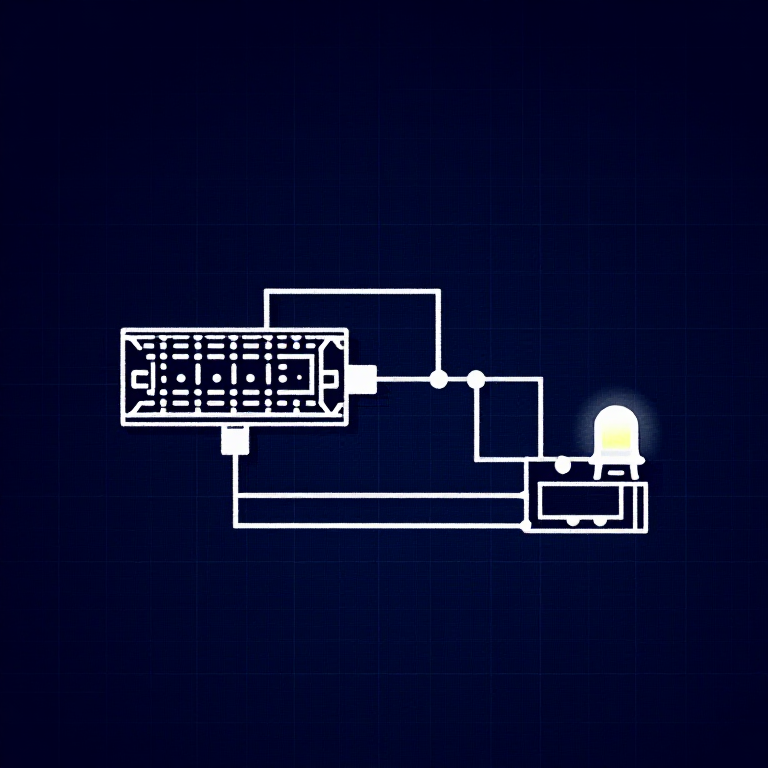
A photoresistor (or LDR — Light Dependent Resistor) changes resistance based on light levels. Combined with a fixed resistor, it forms a voltage divider that the Arduino can read as an analog value. You'll use this to control LED brightness automatically.
Parts Needed
- 1x Arduino Uno + USB cable
- 1x Breadboard
- 1x Photoresistor
- 1x LED (any color)
- 1x 330Ω Resistor
- 1x 10KΩ Resistor (for voltage divider)
- 6x Jumper Wires
Materiali per questo passaggio:
 SparkFun Inventor's Kit - V3.21 kit
Strumenti necessari:
 Computer con l'IDE Arduino
Hardware Hookup
Hardware Hookup
Wiring Instructions
- Connect one side of the photoresistor to 5V.
- Connect the other side to Analog Pin A0.
- Connect a 10K resistor from Analog Pin A0 to GND (this completes the voltage divider).
- Connect the LED positive leg to Digital Pin 9 (PWM-capable).
- Connect the LED negative leg through a 330Ω resistor to GND.
The voltage divider produces a voltage proportional to light level, which the Arduino reads as 0-1023.
Materiali per questo passaggio:
 Breadboard1 pezzo
 Cavetti ponticello5 pezzi
Arduino Code
Arduino Code
Open the Arduino IDE and upload the following sketch to your Arduino board.
Materiali per questo passaggio:
 Arduino Uno R31 pezzo
Strumenti necessari:
Computer con l'IDE ArduinoTest & Experiment
Test & Experiment
What You Should See
The LED brightness changes based on ambient light. Cover the photoresistor to dim or brighten the LED (depending on orientation).
Troubleshooting
- LED stays dark: Check LED polarity. Also verify the photoresistor is in the circuit correctly.
- Not responding to light: The photoresistor spacing is non-standard — make sure both legs are making good contact.
- Subtle changes: Try using a flashlight or covering the sensor completely for more dramatic results.
Experiments to Try
- Uncomment
autoTune()to let the Arduino automatically calibrate to your lighting conditions. - Use the sensor to trigger actions at specific light thresholds (e.g., turn on a "night light" when dark).
Materiali
8- SparkFun Inventor's Kit - V3.210% commissione1 kit€95.06
- Segnaposto
- Segnaposto
- Segnaposto
- 1 pezzoSegnaposto
- Segnaposto
- 1 pezzoSegnaposto
- Segnaposto
Strumenti richiesti
1- Segnaposto
CC0 Pubblico dominio
Questo progetto è rilasciato sotto CC0. Sei libero di copiare, modificare, distribuire e utilizzare quest'opera per qualsiasi scopo, senza chiedere permesso.
Supporta il Maker acquistando prodotti tramite il suo progetto dove guadagna una Commissione Maker stabilita dai venditori, oppure crea una nuova iterazione di questo progetto e includilo come collegamento nel tuo progetto per condividere i ricavi.