예술
뷰티 및 웰니스
공예
문화 및 역사
엔터테인먼트
환경
음식 및 음료
역공학
과학
스포츠
기술
웨어러블
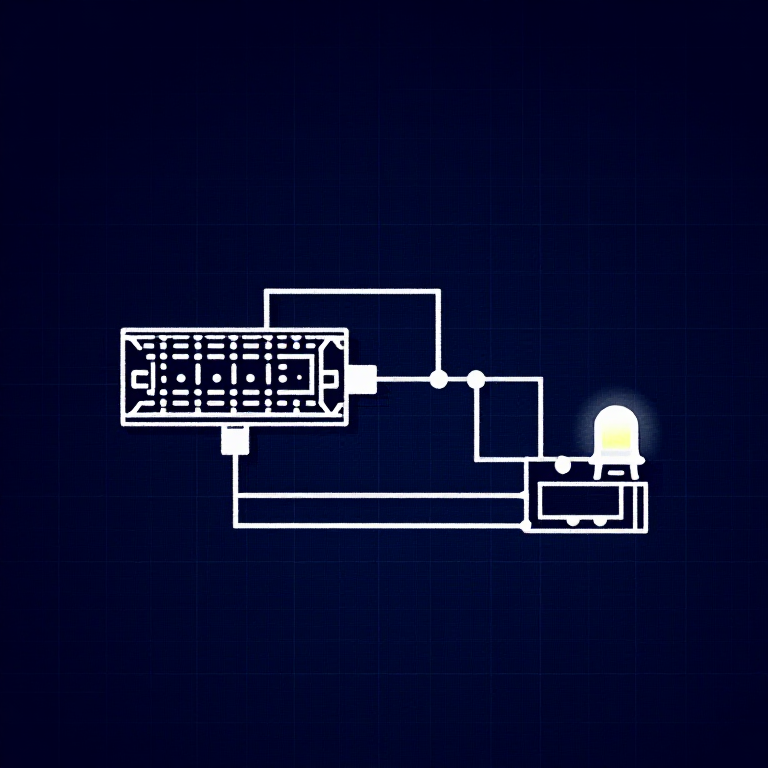


Reading a Photoresistor — SIK Circuit 6
Use a photoresistor (light sensor) to control LED brightness. Learn about voltage dividers, analog input, and the map() function for sensor-to-output conversion.
안내
1
1
Parts & Introduction
Parts & Introduction
A photoresistor (or LDR — Light Dependent Resistor) changes resistance based on light levels. Combined with a fixed resistor, it forms a voltage divider that the Arduino can read as an analog value. You'll use this to control LED brightness automatically.
Parts Needed
- 1x Arduino Uno + USB cable
- 1x Breadboard
- 1x Photoresistor
- 1x LED (any color)
- 1x 330Ω Resistor
- 1x 10KΩ Resistor (for voltage divider)
- 6x Jumper Wires
이 단계의 재료:
 SparkFun Inventor's Kit - V3.21 키트
필요한 도구:
 Arduino IDE가 설치된 컴퓨터
2
2
Hardware Hookup
Hardware Hookup
Wiring Instructions
- Connect one side of the photoresistor to 5V.
- Connect the other side to Analog Pin A0.
- Connect a 10K resistor from Analog Pin A0 to GND (this completes the voltage divider).
- Connect the LED positive leg to Digital Pin 9 (PWM-capable).
- Connect the LED negative leg through a 330Ω resistor to GND.
The voltage divider produces a voltage proportional to light level, which the Arduino reads as 0-1023.
이 단계의 재료:
 브레드보드1 개
 점퍼 와이어5 개
3
3
Arduino Code
Arduino Code
Open the Arduino IDE and upload the following sketch to your Arduino board.
photoresistor.inoarduino
이 단계의 재료:
 Arduino Uno R31 개
필요한 도구:
Arduino IDE가 설치된 컴퓨터4
4
Test & Experiment
Test & Experiment
What You Should See
The LED brightness changes based on ambient light. Cover the photoresistor to dim or brighten the LED (depending on orientation).
Troubleshooting
- LED stays dark: Check LED polarity. Also verify the photoresistor is in the circuit correctly.
- Not responding to light: The photoresistor spacing is non-standard — make sure both legs are making good contact.
- Subtle changes: Try using a flashlight or covering the sensor completely for more dramatic results.
Experiments to Try
- Uncomment
autoTune()to let the Arduino automatically calibrate to your lighting conditions. - Use the sensor to trigger actions at specific light thresholds (e.g., turn on a "night light" when dark).
재료
8- 1 키트₩1,415
- 플레이스홀더
- 플레이스홀더
- 플레이스홀더
- 1 개플레이스홀더
- 플레이스홀더
- 1 개플레이스홀더
- 플레이스홀더
필요 도구
1- 플레이스홀더
예상 총액
만든 사람이 산 것. 가격이 없는 재료는 구매하는 곳에서 구하면 됩니다.
CC0 퍼블릭 도메인
이 블루프린트는 CC0로 공개되었습니다. 어떤 목적으로든 자유롭게 복사, 수정, 배포 및 사용할 수 있습니다.
제품 구매를 통해 메이커를 지원하세요. 판매자가 설정한 메이커 커미션 을 받거나, 이 블루프린트의 새로운 반복을 만들어 연결로 포함시킬 수 있습니다.