
Claude AI සහ Blender සමඟ 3D ආකෘති නිර්මාණය — සංවාදයේ සිට .blend ගොනුව දක්වා
Blender යනු ලෝකයේ ප්රබලතම නොමිලේ ලබාදෙන විවෘත-මූලාශ්ර 3D ආකෘතිකරණ මෘදුකාංගයයි. Claude AI හට Blender සඳහා Python ස්ක්රිප්ට් ලියා ධාවනය කර නිවැරදි 3D ආකෘති සෑදිය හැක: සරල හැඩතල සිට කැටයම් කළ අකුරු, වක්ර පෘෂ්ඨ සහ නිවැරදි භෞතික මිනුම් සහිත සංකීර්ණ පරාමිතික සැලසුම් දක්වා. මෙම blueprint මඟින් Claude, Blender සමඟ සම්බන්ධ කරන ආකාරය සහ සාමාන්ය සංවාදයක් හරහා ප්රකාශනයට සූදානම් 3D සැලසුම් ගොනු සාදන ආකාරය උගන්වයි.
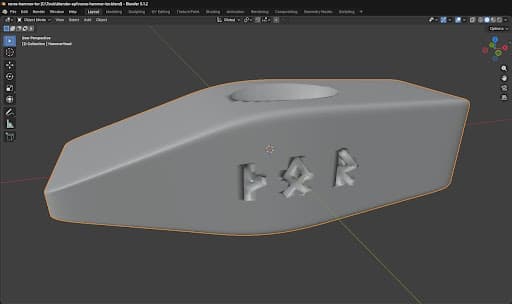
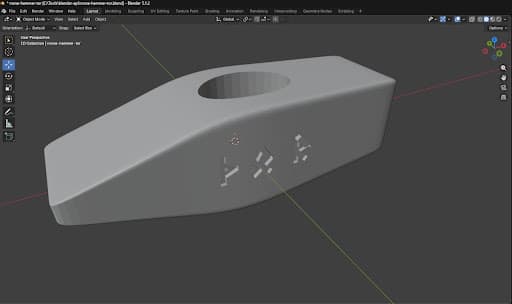
කෙටිමං සහ මෙනු සිය ගණනක් ඇති Blender හි සංකීර්ණ අතුරුමුහුණත ඉගෙනීම වෙනුවට, ඔබට අවශ්ය දේ සරල භාෂාවෙන් විස්තර කරයි. Claude ඔබේ විස්තරය Blender හි Python API ඇමතුම් බවට පරිවර්තනය කරයි: ජ්යාමිතිය සාදයි, modifiers යොදයි, බූලියන් මෙහෙයුම් කරයි, සැබෑ මිනුම්වලට පරිමාණය කරයි සහ නිමි ගොනුව අපනයනය කරයි. උදාහරණ ආකෘතිය වන්නේ දෙපසම එල්ඩර් ෆුතාර්ක් රූන් අකුරු කැටයම් කළ, හරස් තුඩක් සහිත, කිලෝ 1 ක බරැති කම්මල්කරුවාගේ මිටියක හිසයි.
සම්බන්ධ කිරීමේ ක්රම දෙකක් විස්තර කෙරේ: Blender MCP සේවාදායක ඇඩෝනය (Claude Desktop සඳහා, Blender කවුළුව සජීවීව පෙනෙන) සහ අතුරුමුහුණතක් නැති Blender API (Claude Code සඳහා, සේවාදායකයේ විදැහීම සමඟ). දෙකම එක සමාන .blend ගොනු නිපදවයි.
උපදෙස්
Blender ස්ථාපනය කරන්න
Blender ස්ථාපනය කරන්න
blender.org වෙතින් Blender බාගන්න: එය නොමිලේ, විවෘත-මූලාශ්ර (GPL බලපත්රය) වන අතර Windows, macOS සහ Linux මත ධාවනය වේ. 4.0 අනුවාදය හෝ නවතම එකක් ස්ථාපනය කරන්න. Blender හි සම්පූර්ණ Python පරිවර්තකයක් සහ වැඩසටහනේ සෑම මෙහෙයුමක්ම ස්ක්රිප්ට් මඟින් කිරීමට ඉඩ දෙන පුළුල් Python API එකක් ඇත. 3D ආකෘති සෑදීමට Claude භාවිත කරන්නේ මෙයයි: Blender හි සෑම බොත්තමකටම, මෙනුවකටම සහ මෙවලමකටම Python හි සමාන දෙයක් ඇත.
ස්ථාපනයෙන් පසු, Blender ආරම්භ වන බව තහවුරු කිරීමට එක් වරක් විවෘත කරන්න. ඝනකයක්, කැමරාවක් සහ ආලෝකයක් සහිත පෙරනිමි ආරම්භක දර්ශනය ඔබට පෙනෙනු ඇත. එය වසා දමන්න: AI සමඟ වැඩ කිරීමේදී Blender දුරස්ථව පාලනය කෙරේ.
මෙම පියවර සඳහා ද්රව්ය:
 Blender (මෘදුකාංගය)1 කැබැල්ල
අවශ්ය මෙවලම්:
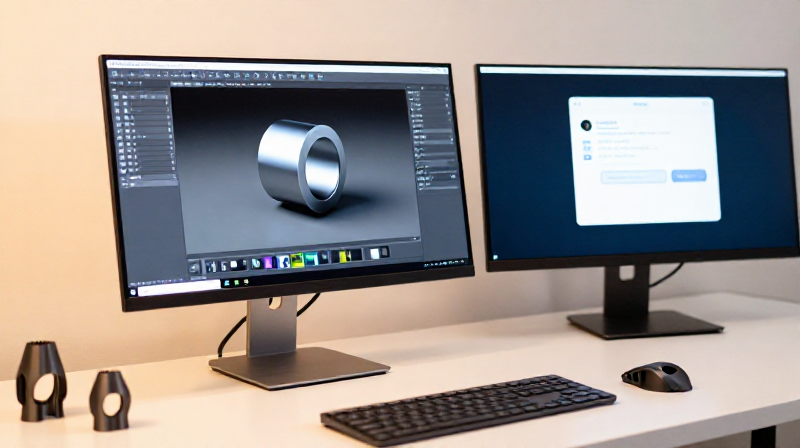
 මේස පරිගණකය
සම්බන්ධ කිරීමේ ක්රමය තෝරන්න
සම්බන්ධ කිරීමේ ක්රමය තෝරන්න
Claude, Blender සමඟ සම්බන්ධ කිරීමට ක්රම දෙකක් ඇත. ඔබේ සැකසුමට ගැළපෙන එක තෝරන්න:
ක්රමය A — Blender MCP සේවාදායකය (Claude Desktop): Blender තුළ එය ප්රාදේශීය සේවාදායකයක් බවට පත් කරන Model Context Protocol (MCP) ඇඩෝනයක් ස්ථාපනය කරන්න. Claude Desktop එයට සෘජුවම සම්බන්ධ වී Python කේතය ධාවනය කිරීමට, දර්ශන කවුළුවේ (viewport) තිර රුව ගැනීමට සහ දර්ශනයේ තොරතුරු කියවීමට හැකි වන අතර, ඔබ Blender කවුළුවේ ආකෘතිය තත්ය කාලයේ ගොඩනැගෙන අයුරු නරඹයි.
ක්රමය B — අතුරුමුහුණතක් නැති Blender API (Claude Code): Blender, FastAPI සේවාදායකයකින් ආවරණය කර අතුරුමුහුණතක් නැති ප්රකාරයෙන් (GUI නොමැතිව) ධාවනය කරන්න. Claude Code, HTTP හරහා Python ස්ක්රිප්ට් යවයි; Blender ඒවා ධාවනය කර ප්රතිදාන ගොනු ආපසු ලබාදෙයි. තොග වැඩ සඳහා මෙය වේගවත් වන අතර දුරස්ථ සේවාදායකයක ධාවනය වේ, නමුත් ඔබට දර්ශන කවුළුව සජීවීව නොපෙනේ: නිමි .blend ගොනුව පසුව පරීක්ෂා කරයි.
සෑම වෙනසක්ම දැකීමට අවශ්ය අන්තර්ක්රියාකාරී සැලසුම් සඳහා ක්රමය A වඩා හොඳය. ස්වයංක්රීය ක්රියාවලි, සේවාදායකයේ නිපදවීම සහ තිරයකින් තොරව වැඩ කිරීම සඳහා ක්රමය B වඩා හොඳය.
Blender MCP සේවාදායකය සකසන්න (ක්රමය A)
Blender MCP සේවාදායකය සකසන්න (ක්රමය A)
GitHub වෙතින් Blender MCP ඇඩෝනය ස්ථාපනය කරන්න ('blender-mcp' ව්යාපෘතිය, එය MCP for Blender ලෙස හඳුන්වයි; මෙම ඇඩෝනය Blender තුළ Claude හට කතා කළ හැකි සේවාදායකයක් ධාවනය කරයි). එහි addon.py ගොනුව බාගන්න. Blender තුළ: Edit → Preferences → Add-ons → Install… → addon.py තෝරා, පසුව 'Interface: MCP for Blender' සක්රිය කරන්න. 3D දර්ශන කවුළුවේ පැති තීරුව විවෘත කිරීමට N ඔබා MCP for Blender ටැබය තෝරන්න.
'Start MCP Server' ක්ලික් කරන්න. දැන් Blender, Claude වෙතින් සම්බන්ධතා සඳහා බලා සිටී. Claude Desktop සැකසුම්වල Blender MCP සේවාදායකය මෙවලම් මූලාශ්රයක් ලෙස එක් කරන්න (වින්යාස කොටස ව්යාපෘතියේ README හි දී ඇත). සම්බන්ධ වූ පසු Claude හට execute_blender_code, get_scene_info සහ get_viewport_screenshot වැනි මෙවලම් ලැබේ: සංවාදය හරහා 3D ආකෘති සැලසුම් කිරීමට අවශ්ය සියල්ල.
මෙම පියවර සඳහා ද්රව්ය:
 Blender සඳහා MCP සේවාදායක ඇඩෝනය1 කැබැල්ල
අතුරුමුහුණතක් නැති Blender API සකසන්න (ක්රමය B)
අතුරුමුහුණතක් නැති Blender API සකසන්න (ක්රමය B)
අතුරුමුහුණතක් නැති Blender ආවරණය කරන FastAPI සේවාදායකයක් සාදන්න. සේවාදායකය POST /execute අන්ත ලක්ෂ්යය හරහා Python ස්ක්රිප්ට් භාරගෙන, Blender හි පසුබිම් ප්රකාරයේ (blender --background --python) ධාවනය කර, ප්රතිදාන ගොනු ආපසු ලබාදෙයි. සරලම සේවාදායකයට අවශ්ය වන්නේ එක් අන්ත ලක්ෂ්යයක් පමණි:
Claude වෙතින් ලැබුණු Python කේතය කාර්ය නාමාවලියක ගොනුවකට, උදාහරණයක් ලෙස job.py වෙත ලියා, මෙම විධානයෙන් ධාවනය කරන්න: blender --background --python job.py. ලැබෙන .blend ගොනුව කාර්ය නාමාවලියේ සුරකින්න, සහ GET /files අන්ත ලක්ෂ්යය හරහා ලබා දෙන්න. ස්ක්රිප්ට් යැවීමට සහ නිමි ආකෘතියේ ගොනු ලබා ගැනීමට Claude Code මෙම HTTP අන්ත ලක්ෂ්ය අමතයි.
මෙය AI මඟින් රූප නිපදවීමේ ක්රියාවලිවල (ComfyUI) භාවිත වන එම ව්යුහයමයි: API එකකින් ආවරණය කළ, GPU සහිත සේවාදායකයක ධාවනය වන, අතුරුමුහුණතක් නැති නිර්මාණාත්මක මෙවලමක්.
අවශ්ය මෙවලම්:
මේස පරිගණකයඔබට සෑදීමට අවශ්ය ආකෘතිය විස්තර කරන්න
ඔබට සෑදීමට අවශ්ය ආකෘතිය විස්තර කරන්න
ඔබට ගොඩනැගීමට අවශ්ය දේ සරල භාෂාවෙන් Claude ට කියන්න. මිනුම්, ද්රව්ය සහ භෞතික ගුණාංග ගැන නිශ්චිත වන්න. උදාහරණයක් ලෙස:
'හරස් තුඩක් සහිත, කිලෝ 1 ක බරැති කම්මල්කරුවාගේ මිටියක හිසක් සැලසුම් කරන්න. පහර දෙන මුහුණත රවුම් කළ කොන් සහිත සමචතුරස්රයක් විය යුතු අතර, ලෝහය තල්ලු කිරීමට තුඩ තිරස් විය යුතුය (Z හි තුනී, Y හි පළල්). පැතලි පැති දෙකෙහිම මි.මී. 3 ක් ගැඹුරට කැටයම් කළ එල්ඩර් ෆුතාර්ක් රූන් ᚦᛟᚱ (TOR) එක් කරන්න. පරිමාව හරියටම 127.4 cm³ වන සේ ජ්යාමිතිය පරිමාණය කරන්න (7850 kg/m³ ඝනත්වය සහිත දැඩි කළ වානේ කිලෝ 1). මිටට සඳහා ඕවලාකාර සිදුරක් තබන්න.'
Claude මෙම විස්තරය Blender Python මෙහෙයුම් පෙළක් බවට පරිවර්තනය කරයි. ඔබේ විස්තරය වඩාත් නිවැරදි වන තරමට පළමු අනුවාදය ඔබට අවශ්ය දෙයට ළං වේ. සාපේක්ෂ වචන ('එය ලොකු කරන්න') වෙනුවට සැබෑ මිනුම් (මිලිමීටර, ග්රෑම්, අංශක) භාවිත කරන්න.
Claude, Blender සඳහා Python ස්ක්රිප්ට් සාදා ධාවනය කරයි
Claude, Blender සඳහා Python ස්ක්රිප්ට් සාදා ධාවනය කරයි
Claude, Blender හි Python API (bpy මොඩියුලය) භාවිතයෙන් ආකෘතිය ගොඩනගන Python ස්ක්රිප්ට් එකක් ලියයි. මිටි හිස සඳහා සාමාන්ය අනුපිළිවෙළ:
1. මූලික ඝනකයක් සාදා මිටියේ ආසන්න මිනුම්වලට පරිමාණය කිරීම
2. හැඩගැස්වීමට ජ්යාමිතිය එක් කිරීම සඳහා mesh එක කොටස්වලට බෙදීම
3. හරස් තුඩේ සිහින් වීම, පහර දෙන මුහුණතේ පැතිකඩ සහ මැද ඉදිමුම හැඩගැස්වීමට ශීර්ෂ (vertices) එකින් එක සැකසීම
4. සුමට වක්ර සඳහා Subdivision Surface modifier යෙදීම
5. සිලින්ඩරයක් සමඟ බූලියන් DIFFERENCE මෙහෙයුමෙන් මිට සිදුර කැපීම
6. mesh පරිමාව ගණනය කර වානේ කිලෝ 1 ට ළඟා වීමට ඒකාකාර පරිමාණ සාධකයක් යෙදීම
7. සෑම රූන් ඉරකටම කුඩා කපන ඝනක සාදා බූලියන් මෙහෙයුම්වලින් පෘෂ්ඨයෙන් අඩු කිරීම
Claude මෙම ස්ක්රිප්ට් එක Blender වෙත යවයි (MCP හෝ API හරහා). Blender එය ධාවනය කර 3D ජ්යාමිතිය නිපදවයි. MCP (ක්රමය A) සමඟ, ආකෘතිය දර්ශන කවුළුවේ තත්ය කාලයේ මතුවන අයුරු ඔබට පෙනේ.
සැලසුම සමාලෝචනය කර වැඩිදියුණු කරන්න
සැලසුම සමාලෝචනය කර වැඩිදියුණු කරන්න
ආකෘතිය පරීක්ෂා කරන්න. ක්රමය A හිදී Blender දර්ශන කවුළුවේ එය වටා කරකවන්න. ක්රමය B හිදී .blend ගොනුව බාගෙන Blender හි විවෘත කරන්න, නැතහොත් දර්ශන කවුළුවේ තිර රුවක් විදැහීමට Claude ගෙන් ඉල්ලන්න. මිනුම්, සමානුපාත සහ විස්තරවල නිරවද්යතාව පරීක්ෂා කරන්න. පළමු අනුවාදයේ පොදු ගැටලු සහ ඒවා නිවැරදි කිරීමට Claude ට මඟ පෙන්වන ආකාරය:
• එක් පැත්තක අකුරු ආපසු හැරී පෙනේ → දර්පණ කළ යුත්තේ කුමන මුහුණතද (+Y හෝ -Y) යන්න කියන්න
• ආකෘතිය ඉතා කුඩා හෝ ඉතා විශාලයි → ඉලක්ක මිනුම mm වලින් දෙන්න
• වක්ර පෘෂ්ඨය මත කැටයම් අතුරුදහන් විය → සෑම කැටයම් ස්ථානයකම පෘෂ්ඨයේ සැබෑ පිහිටීම Claude විමසිය යුතුය
• බූලියන් මෙහෙයුම් mesh එක විනාශ කළේය → එක් කළ ජ්යාමිතිය නොව, සෑම ඉරකටම වෙනම කපනයක් භාවිත කරන ලෙස Claude ට කියන්න
• කොටස් වැරදි අක්ෂයක පිහිටයි → සැමවිටම අක්ෂ යොමු (+X, -Y, +Z) භාවිත කරන්න, 3D හි අපැහැදිලි 'ඉදිරිය' හෝ 'පිටුපස' කිසිදා නොකියන්න
සෑම නිවැරදි කිරීමක්ම සංවාදයේ එක් වාරයකි: ඔබ ගැටලුව විස්තර කරයි, Claude ස්ක්රිප්ට් එක සකසා නැවත ධාවනය කරයි, ඔබ නැවත සමාලෝචනය කරයි. සාමාන්යයෙන් වාර දෙකේ සිට පහක් දක්වා නිමි ආකෘතියක් ලබා දෙයි.
සියලු කෝණවලින් ආකෘතිය තහවුරු කරන්න
සියලු කෝණවලින් ආකෘතිය තහවුරු කරන්න
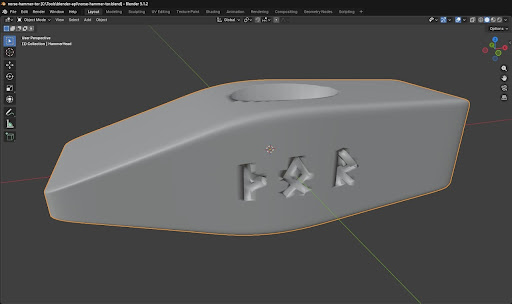
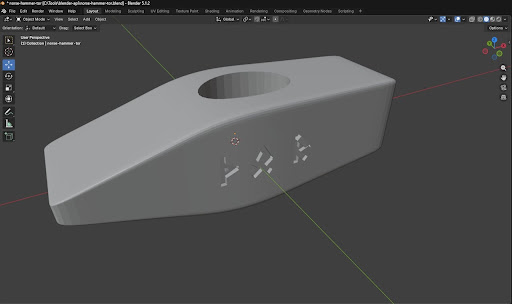
සෑම මුහුණතක්ම පරීක්ෂා කිරීමට ආකෘතිය කරකවන්න. පැතලි පැති දෙකෙහිම කැටයම් කළ රූන් නිවැරදිව කියවිය හැකි බව සහතික කරන්න: +Y මුහුණතේ අකුරු +Y දිශාවේ සිට බලන විට ස්වාභාවිකව දර්පණ වූ ලෙස පෙනිය යුතු අතර, -Y මුහුණතේ අකුරු -Y දිශාවේ සිට නිවැරදිව කියවිය යුතුය. මිට සිදුර පිරිසිදු සහ මැදට ඇති බව පරීක්ෂා කරන්න. හරස් තුඩ දැති සහිත දාර නොමැතිව සුමටව සිහින් වන බව තහවුරු කරන්න.
Blender හි ඉදිරි දර්ශනය (-Y දර්ශනය) සඳහා Numpad 1, පිටුපස (+Y දර්ශනය) සඳහා Ctrl+Numpad 1, දකුණ (+X දර්ශනය) සඳහා Numpad 3 සහ ඉහළ (+Z දර්ශනය) සඳහා Numpad 7 ඔබන්න. මෙම විකලාංග (orthographic) දර්ශන, ඉදිරිදර්ශී (perspective) දර්ශනය සඟවන පෙළගැස්මේ ගැටලු හෙළි කරයි.
.blend ලෙස සුරකින්න (ප්රධාන ආකෘතිය)
.blend ලෙස සුරකින්න (ප්රධාන ආකෘතිය)
ආකෘතිය .blend ගොනුවක් ලෙස සුරකින්න (File → Save As, හෝ ස්ක්රිප්ට් මඟින්: bpy.ops.wm.save_as_mainfile(filepath='model.blend')). .blend යනු Blender හි ස්වදේශීය ආකෘතිය වන අතර ලේඛනාරක්ෂණය සහ බෙදාගැනීම සඳහා හොඳම තේරීමයි:
• සියලු modifier ගොඩවල්, ද්රව්ය, දර්ශන සැකසුම් සහ සංස්කරණ ඉතිහාසය ආරක්ෂා කරයි
• සම්පූර්ණයෙන්ම සංස්කරණය කළ හැක: වෙනත් maker කෙනෙකුට එය විවෘත කර රූන් අකුරු වෙනස් කිරීමට, වෙනත් බරක් සඳහා ප්රමාණය වෙනස් කිරීමට හෝ ඕනෑම පරාමිතියක් සීරුමාරු කිරීමට හැක
.blend ගොනුව ආකෘතියේ එකම සත්ය මූලාශ්රයයි.
සැලසුම් ගොනුව Youblob වෙත උඩුගත කරන්න
සැලසුම් ගොනුව Youblob වෙත උඩුගත කරන්න
Youblob හි blueprint එකක් සාදන විට හෝ සංස්කරණය කරන විට සැලසුම් පියවරක් එක් කර (අන්තර්ගත වර්ගය: 'design') .blend ගොනුව උඩුගත කරන්න. Youblob, .blend ගොනු බ්රව්සරය තුළම අන්තර්ක්රියාකාරී 3D පෙරදසුනක් ලෙස පෙන්වයි, බාගැනීමට ලබාදෙයි, සහ වෙනත් ආකෘතියකට පරිවර්තනය නොකර සෘජුවම 3D මුද්රණයට සූදානම් කළ හැක.
අනෙක් makers නිවැරදි පිරිවිතර දැන ගැනීම සඳහා ආකෘතියේ මිනුම්, බර සහ ද්රව්යයේ ඝනත්වය පියවරේ විස්තරයේ ලියන්න. පරාමිතික ආකෘති සඳහා (බර අනුව පරිමාණය කළ මෙම මිටිය වැනි), අභිරුචිකරණය සඳහා වෙනස් කළ යුතු විචල්ය මොනවාද යන්න ලේඛනගත කරන්න: අනෙක් makers මුල සිට ආරම්භ නොකර සැලසුම තම අවශ්යතාවලට ගැළපීමට හැකි විය යුතුය.
AI සහාය ඇති 3D ආකෘතිකරණයේ හොඳම පිළිවෙත්
AI සහාය ඇති 3D ආකෘතිකරණයේ හොඳම පිළිවෙත්
Claude සමඟ නෝර්ඩික් මිටි හිස සහ වෙනත් ආකෘති සැලසුම් කිරීමෙන් ලත් පාඩම්:
• දිශා නොව අක්ෂ යොමු භාවිත කරන්න: '+Y මුහුණත' සහ '-Z අක්ෂය' කියන්න, කිසිදා 'ඉදිරිය' හෝ 'ඉහළ' නොකියන්න: ඒවා 3D හි අපැහැදිලි වන අතර දර්පණ වූ ප්රතිඵල ඇති කරයි.
• බූලියන් මෙහෙයුම්වලට වෙන වෙනම කපන අවශ්යයි: බූලියන් මෙහෙයුමකට පෙර මූලික හැඩතල කිහිපයක් එක් කිරීමෙන් manifold නොවන (non-manifold) ජ්යාමිතියක් ඇති වේ. සෑම කපනයක්ම වෙනම වස්තුවක් ලෙස තබන්න.
• සැබෑ පෘෂ්ඨය විමසන්න: කොටස් කිරීම සහ modifiers වලින් පසු, mesh පෘෂ්ඨය මුල් මිනුම් යෝජනා කරන තැන නොපිහිටයි. කැටයම් හෝ කැපුම් තැබීමට පෙර Claude ශීර්ෂවල පිහිටීම් මැනිය යුතුය.
• මිනුම් අනුව නොව පරිමාව අනුව පරිමාණය කරන්න: ඉලක්ක බරකට ළඟා වීමට, ලකුණු කළ චතුස්තලක (signed tetrahedra) ක්රමයෙන් mesh පරිමාව ගණනය කර, පසුව ඒකාකාර පරිමාණ සාධකයක් යොදන්න: (target_vol / current_vol) ^ (1/3).
• වාර 2-5 කින් පුනරාවර්තනය කරන්න: පළමු ස්ක්රිප්ට් එක 80% ක් නිවැරදිය. සමාලෝචන සහ නිවැරදි කිරීමේ සෑම චක්රයක්ම ඉතිරි ගැටලු අල්ලා ගනී. සාමාන්යයෙන් වාර පහකින් නිෂ්පාදනයට සූදානම් ආකෘතියක් ලැබේ.
ද්රව්ය
2- 1 කැබැල්ලස්ථානගත
- 1 කැබැල්ලස්ථානගත
අවශ්ය මෙවලම්
1- ස්ථානගත
සම්බන්ධිත සැලසුම්වල ද්රව්ය
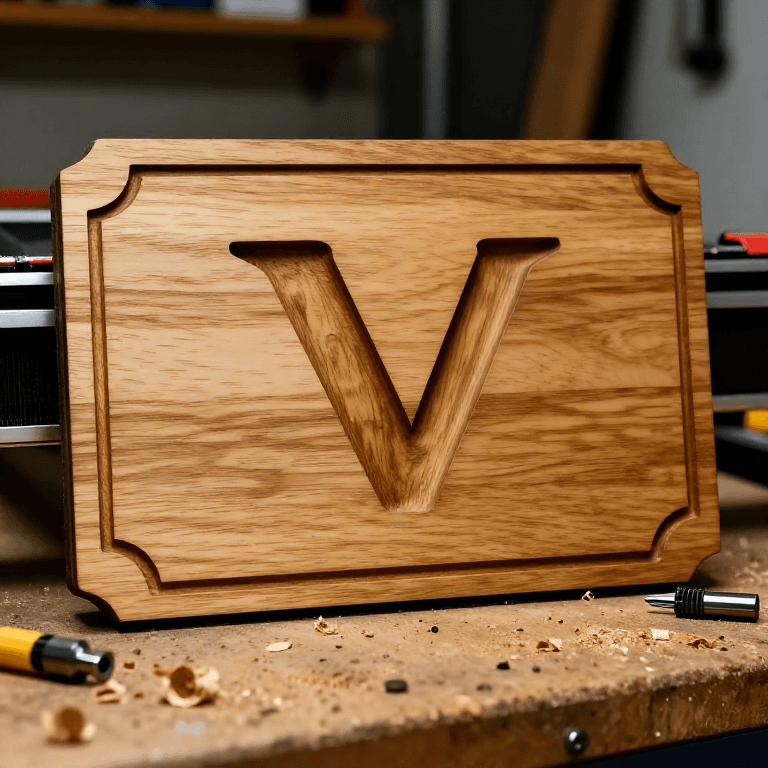
සම්බන්ධ බ්ලූප්රින්ට්
මෙම බ්ලූප්රින්ට් දැනුම බෙදා ගනී — ශිල්ප ක්රම, ද්රව්ය හෝ මූලධර්ම

CC0 පොදු වසම
මෙම බ්ලූප්රින්ට් CC0 යටතේ නිකුත් කර ඇත. ඔබට අවසර නොමැතිව පිටපත් කිරීම, වෙනස් කිරීම, බෙදා හැරීම සහ භාවිතා කිරීම කළ හැක.
බ්ලූප්රින්ට් හරහා නිෂ්පාදන මිලදී ගැනීමෙන් නිර්මාතෘට සහාය වන්න නිර්මාතෘ කොමිසම විකුණුම්කරුවන් විසින් නියම කළ, හෝ මෙම බ්ලූප්රින්ට්හි නව අනුවාදයක් සාදා ආදායම බෙදා ගැනීමට ඔබේ බ්ලූප්රින්ට්හි සම්බන්ධතාවයක් ලෙස ඇතුළත් කරන්න.