အနုပညာ
အလှအပနှင့် ကျန်းမာရေး
လက်မှုအနုပညာ
ယဉ်ကျေးမှုနှင့် သမိုင်း
ဖျော်ဖြေရေး
ပတ်ဝန်းကျင်
အစားအစာနှင့် အချိုရည်
ပြောင်းပြန်အင်ဂျင်နီယာပညာ
သိပ္ပံပညာများ
အားကစား
နည်းပညာ
ဝတ်ဆင်နိုင်သောပစ္စည်းများ
ဘာသာပြန်ဆိုထားသည်
BLUEPRINT NFT
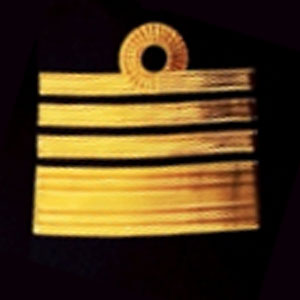

မှိတ်သည် LED — သင်၏ ပထမဆုံး Arduino ပရောဂျက်
စတုံးဆန်သော ပထမဆုံး အီလက်ထရွန်းနစ်ပရောဂျက်! Arduino၊ breadboard၊ resistor နှင့် တစ်ခုတည်းသော LED ကို အသုံးပြု၍ မှိတ်သည် LED circuit ကို တည်ဆောက်ပါ။ အပြည့်အစုံ စတင်သူများအတွက် ပြီးပြည့်စုံသည် — solder ပြုလုပ်ခြင်းမလိုအပ်ပါ။
ညွှန်ကြားချက်များ
1
1
သင့်အစိတ်အပိုင်းများကိုစုဆောင်းပါ
သင့်အစိတ်အပိုင်းများကိုစုဆောင်းပါ
အောက်တွင်စာရင်းပြုထားသောအစိတ်အပိုင်းများအားလုံးကိုစုဆောင်းပါ။ အိုင်းယံရည်သန်းထိုးခြင်းမလိုအပ်ပါ — အရာအားလုံးသည် breadboard သို့ချိတ်ဆက်ပါသည်။
ဤအဆင့်အတွက် ကုန်ကြမ်းများ:
 SparkFun Inventor's Kit - V3.21 အစုံ
လိုအပ်သော ကိရိယာများ:
 Arduino IDE ပါ ကွန်ပျူတာ
2
2
ဆားကစ် ပုံကြမ်း
ဆားကစ် ပုံကြမ်း
Signal သည် Arduino Pin 13 → 220Ω resistor (R1) → LED (D1) → GND သို့ စီးဆင်းသည်။ Resistor သည် LED ကို ကာကွယ်ရန် လျှပ်စီးကို ကန့်သတ်ပေးသည်။
ဤအဆင့်အတွက် ကုန်ကြမ်းများ:
 Arduino Uno R31 ခု
 ၅ မီလီမီတာ LED1 ခု
 ၁/၄ ဝပ် လျှပ်ကာအစုံ1 ခု
3
3
ဝါယာကြန်းဆက်သည်
ဝါယာကြန်းဆက်သည်
- LED ကို breadboard သို့ထည့်သွင်းပါ — ရှည်သောခြင်း (anode +) တစ်ခု၊ တိုသောခြင်း (cathode −) နောက်တစ်ခုသို့။
- 220Ω resistor ၏ခြင်းတစ်ခုကို LED cathode နှင့်တူညီသောအတန်းတွင်ထည့်သွင်းပါ။ အခြားခြင်းကိုခွဲခြားထားသောအတန်းတွင်။
- Jumper wire LED anode အတန်းမှ → Arduino Pin 13။
- Jumper wire resistor လွတ်လပ်သောအတန်းမှ → Arduino GND။
ဤအဆင့်အတွက် ကုန်ကြမ်းများ:
၅ မီလီမီတာ LED1 ခု၁/၄ ဝပ် လျှပ်ကာအစုံ1 ခု ဘရက်ဘုတ်1 ခု
 ချိတ်ဆက်ဝါယာ (ထီး-ထီး)2 ခု
4
4
Blink ကုဒ်ကို အပ်လုဒ်တင်ပါ
Blink ကုဒ်ကို အပ်လုဒ်တင်ပါ
USB ဖြင့် Arduino ချိတ်ဆက်ပါ။ Arduino IDE ကိုဖွင့်ပါ၊ Tools → Board → Arduino Uno ကိုရွေးချယ်ပါ၊ ကုဒ်ကိုကူးထည့်ပြီး Upload ကိုနှိပ်ပါ။
blink.inoarduino
ဤအဆင့်အတွက် ကုန်ကြမ်းများ:
Arduino Uno R31 ခု USB-B ကြိုး1 ခု
လိုအပ်သော ကိရိယာများ:
Arduino IDE ပါ ကွန်ပျူတာ5
5
PCB အပြင်အarrangement (Reference)
PCB အပြင်အarrangement (Reference)
ဤသည် PCB layout ပုံစံဖြင့် circuit ကိုပြသည်။ ဤ project အတွက် လိုအပ်သည်မဟုတ်ပေ — breadboard သည် ပြီးပerfectly လုပ်ဆောင်သည် — သို့သော် တစ်ခြား circuit ကိုအစစ် board အဖြစ် ထုတ်လုပ်ပါက မည်သည့်အရုပ်မျိုးဆန်သည်ကိုပြသည်။
6
6
စမ်းသပ်မှု နှင့် စမ်းလုံ့စမ်းကြည့်မှု
စမ်းသပ်မှု နှင့် စမ်းလုံ့စမ်းကြည့်မှု
LED မှိတ်တုတ်မှိတ်တုတ်လည်း? ကောင်းစွာလုပ်ဆောင်လိုက်ပါပြီ! သင်သည် အခါခွင့်အခွင့်များ ပရိုဂရမ်ထည့်သွင်းလိုက်ပါပြီ။
အခက်အခဲများ ဖြေရှင်းခြင်း:
နောက်လာမည့် စမ်းသပ်မှုများ:
အခက်အခဲများ ဖြေရှင်းခြင်း:
- LED မလင်းပါသလား? LED ကို ပြန်လည်လှည့်ခြင်း — Pin 13 သို့ ရှည်ရှည်သောခြင်း။
- LED အစဉ်တည်နေသလား? ကုဒ်အောင်မြင်စွာ တင်သွင်းခြင်းကို စစ်ဆေးပါ။
- အဘယ်အရာမျှ ကျေးဇူးမစေလား? အဆင့် 2 ရှိ အချိုးကျညီမျှမှုဆိုင်ရာ ကြိုးဆက်မှုအား သေချာစွာ စစ်ဆေးပါ။
နောက်လာမည့် စမ်းသပ်မှုများ:
delay()တန်ဖိုးများကို ပြောင်းလဲခြင်းဖြင့် မှိတ်တုတ်မှိတ်တုတ်သည့်အရှိန်ကို ထိန်းချုပ်ပါ- Pin 12 တွင် LED ဒုတိယတစ်ခုထည့်သွင်းပါ
- RGB LED ဖြင့်အစားထိုးပါ (အဆင့် SIK Circuit 3 ကို ကြည့်ပါ)
ပစ္စည်းများ
7- SparkFun Inventor's Kit - V3.210% ကော်မရှင်1 အစုံ$104.50
- နေရာယူပစ္စည်း
- နေရာယူပစ္စည်း
- နေရာယူပစ္စည်း
- နေရာယူပစ္စည်း
- နေရာယူပစ္စည်း
- နေရာယူပစ္စည်း
လိုအပ်သော ကိရိယာများ
2- နေရာယူပစ္စည်း
- Optional, pre-made jumper wires do not need strippingနေရာယူပစ္စည်း
ခန့်မှန်း စုစုပေါင်း
လက်မှုပညာရှင် ဝယ်ခဲ့သည့်အရာ။ ဈေးနှုန်းမပါဘဲ ပြထားသော ပစ္စည်းများကို သင်ဝယ်သည့်နေရာမှ ရယူပါ။
CC0 အများပိုင်
ဤအစီအစဉ်ကို CC0 အောက်တွင် ထုတ်ဝေထားသည်။ ခွင့်ပြုချက်မလိုဘဲ ကူးယူ၊ ပြင်ဆင်၊ ဖြန့်ဝေ နှင့် အသုံးပြုနိုင်သည်။
အစီအစဉ်မှတစ်ဆင့် ကုန်ပစ္စည်းများဝယ်ယူ၍ လက်မှုပညာရှင်ကို ပံ့ပိုးပါ လက်မှုပညာရှင် ကော်မရှင် ရောင်းချသူက သတ်မှတ်သည်၊ သို့မဟုတ် ဤအစီအစဉ်၏ ဗားရှင်းအသစ်ဖန်တီး၍ ဝင်ငွေခွဲဝေရန် သင့်အစီအစဉ်တွင် ချိတ်ဆက်မှုအဖြစ် ထည့်သွင်းပါ။