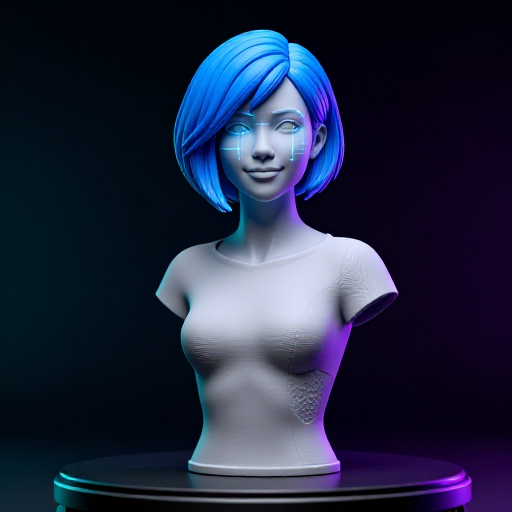

From Blender to G-code on Youblob — Upload .blend, Generate Print-Ready Instructions
Youblob lets you skip the traditional slicer workflow entirely. Instead of exporting STL files and manually configuring PrusaSlicer or Cura, you upload your .blend file directly when publishing a blueprint. Every viewer who opens your blueprint can then generate G-code matched to their own printer — all inside the browser, with zero software to install.
The pipeline works entirely client-side: Youblob parses the .blend file, extracts the 3D geometry, and slices it using the built-in Kiri:Moto engine. The viewer selects their printer (from their personal workshop, a makerspace they belong to, or the global printer catalog), configures supports and infill, and downloads print-ready G-code. Once generated, the G-code is cached — the next maker with the same printer gets it instantly.
Instrucciones
Design your 3D model in Blender
Design your 3D model in Blender
Create your model in Blender or open an existing .blend file. Blender is free, open-source, and runs on Windows, macOS, and Linux — download it from blender.org. Youblob works with .blend files from Blender 2.5 through 5.1, including zstd-compressed files from Blender 5.0+.
Before moving on, verify your model is ready for 3D printing:
• Check dimensions: Select the object, press N to open the sidebar, and confirm the size under the Item tab matches your intended print dimensions in millimetres.
• Apply modifiers: If you used Boolean, Mirror, Subdivision Surface, or other modifiers, apply them (Modifier panel → dropdown → Apply). The .blend parser needs the final mesh geometry.
• Check manifold: In Edit Mode, use Select → All by Trait → Non-Manifold (Shift+Ctrl+Alt+M). A manifold (watertight) mesh produces better slicing results. Fix any holes or inverted normals before saving.
Herramientas necesarias:
 Blender (programa informático)
Save the .blend file
Save the .blend file
Save your file with File → Save (Ctrl+S). There is no need to export as STL, OBJ, or any other intermediate format — Youblob reads .blend files natively. The .blend format is typically half the size of an equivalent STL, preserves all your edit history and modifiers, and is fully editable by anyone who downloads it in Blender.
Keep the file under 200 MB (the upload limit for design files on Youblob). Most printable models are well under 10 MB.
Create a blueprint on Youblob and attach the .blend file
Create a blueprint on Youblob and attach the .blend file
On Youblob, go to your profile and create a new blueprint. Fill in the title, description, category, and difficulty level. When you reach the step builder, add a step with type "Design" — this is where you upload your .blend file.
The design step accepts .blend files along with STL, OBJ, 3MF, STEP, GLB, GLTF, FBX, PLY, and other common 3D formats. Once uploaded, the file is stored with your blueprint and available to every viewer. Add your remaining build steps (assembly instructions, finishing, etc.) as normal text steps with photos.
After completing all steps and BOM items, publish the blueprint. The .blend file is now live — anyone who views your blueprint can see the 3D model rendered directly in their browser and generate G-code from it.
How viewers generate G-code from your blueprint
How viewers generate G-code from your blueprint
When someone opens your published blueprint and views the design step, they see the 3D model rendered in an interactive viewer (pan, rotate, zoom). Below the viewer, a "Generate G-code" button launches the slicing panel. Everything happens in the browser — no software to install, no files to export.
The viewer selects a printer from three sources:
• My Workshop: Printers the viewer has registered in their personal Warehouse (Garage) on Youblob
• Makerspace Equipment: If the viewer is a member of a makerspace or school with workshop equipment, those 3D printers appear automatically — with live availability status (available, in use, maintenance)
• Printer Catalog: A searchable database of verified printer profiles (manufacturer, model, bed size, nozzle diameter) for viewers who have not yet registered their own equipment
Each printer profile carries its own Kiri:Moto slicing configuration, so the G-code is optimised for that exact machine.
Configure supports, infill, and slice
Configure supports, infill, and slice
After selecting a printer, the viewer can optionally adjust support settings before slicing:
• Support angle: Overhangs steeper than this threshold (default 45°) get support structures
• Support density: How dense the support material is (affects ease of removal)
• Support gap: Distance between support and model surface
Youblob automatically checks whether the model fits the selected printer's build volume. If the model is too large, it flags "Too Large" and can suggest a split plan for multi-part printing.
Click "Generate G-code" to start slicing. The Kiri:Moto engine runs entirely in a Web Worker thread in the browser — your computer does the computation, not a server. A progress bar shows the slicing progress. For a typical model this takes 5–30 seconds depending on complexity and your hardware.
Preview the G-code and review material estimates
Preview the G-code and review material estimates
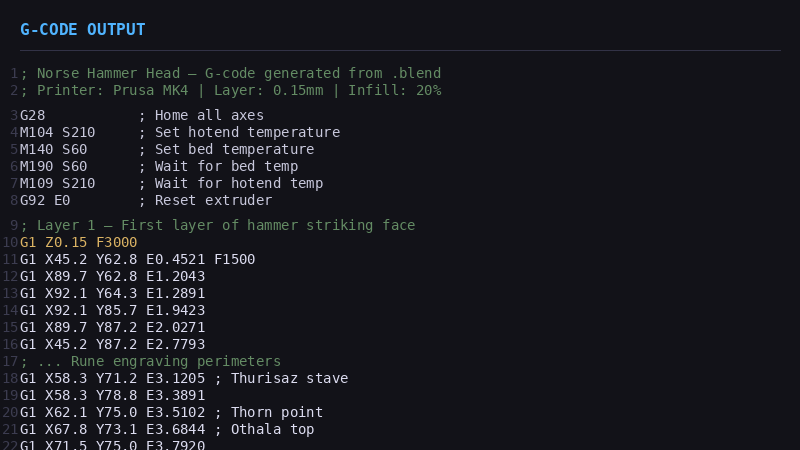
Once slicing completes, Youblob shows a 3D preview of the generated toolpath — the exact path the print head will follow, layer by layer. A slider lets you scrub through layers to inspect the infill pattern, supports, and perimeters.
Material estimates are calculated automatically:
• Filament weight (grams) based on the selected material (PLA, PETG, ABS, TPU, Nylon, etc.)
• Filament length and volume
• Estimated cost based on material density and typical pricing
• Estimated print time
• Layer count
For CNC and laser modes (supported by the same engine), Youblob shows toolpath analysis specific to those manufacturing methods.
Materiales para este paso:
 Filamento de impresión 3D (PLA)0.1 kg
Herramientas necesarias:
 Impresora 3D de filamento (FDM)
Download and transfer G-code to your printer
Download and transfer G-code to your printer
Click "Download G-code" to save the .gcode file to your computer. Transfer it to your printer using whichever method your machine supports:
• SD card / USB drive: Copy the .gcode file, insert into the printer, select and print
• OctoPrint / Mainsail / Fluidd: Upload via the web interface for remote printing and monitoring
• Wi-Fi / network printers: Send directly from your computer to the printer
The G-code file is everything the printer needs — temperatures, speeds, layer heights, retraction, and toolpath are all baked in from the printer profile used during slicing.
Herramientas necesarias:
Impresora 3D de filamento (FDM) Módulo de tarjeta micro SD (SPI)
G-code caching — generate once, reuse everywhere
G-code caching — generate once, reuse everywhere
The first time anyone generates G-code for a specific blueprint + printer combination, Youblob caches the result. Every subsequent maker with the same printer model gets the cached G-code instantly — no waiting for slicing.
The cache key is a SHA-256 hash of the source .blend file combined with the printer profile ID. If the blueprint author updates the .blend file, the hash changes and new G-code is generated fresh. This crowd-sourced caching means popular blueprints build up a library of ready-made G-code across hundreds of printer models over time.
This is one of the key advantages of the Youblob pipeline over traditional workflows: instead of every maker individually setting up a slicer, configuring profiles, and generating G-code in isolation, the community shares the work. One maker's effort benefits everyone with the same printer.
Materiales
1- Marcador de posición
Herramientas requeridas
5- Marcador de posición
- Marcador de posición
- Marcador de posición
- Marcador de posición
- Marcador de posición
Blueprints relacionados
Estos blueprints comparten conocimiento — técnicas, materiales o principios
CC0 Dominio público
Este Blueprint se publica bajo CC0. Eres libre de copiar, modificar, distribuir y usar este trabajo para cualquier propósito, sin pedir permiso.
Apoya al Maker comprando productos a través de su Blueprint, donde gana una Comisión del Maker establecida por los vendedores, o crea una nueva iteración de este Blueprint e inclúyela como conexión en tu propio Blueprint para compartir ingresos.