SENI
KECANTIKAN & KESEJAHTERAAN
KRAFTANGAN
BUDAYA & SEJARAH
HIBURAN
ALAM SEKITAR
MAKANAN & MINUMAN
KEJURUTERAAN TERBALIK
SAINS
SUKAN
TEKNOLOGI
BOLEH PAKAI
Diterjemahkan
BLUEPRINT NFT


LED Berkedip LED — Projek Arduino Pertama Anda
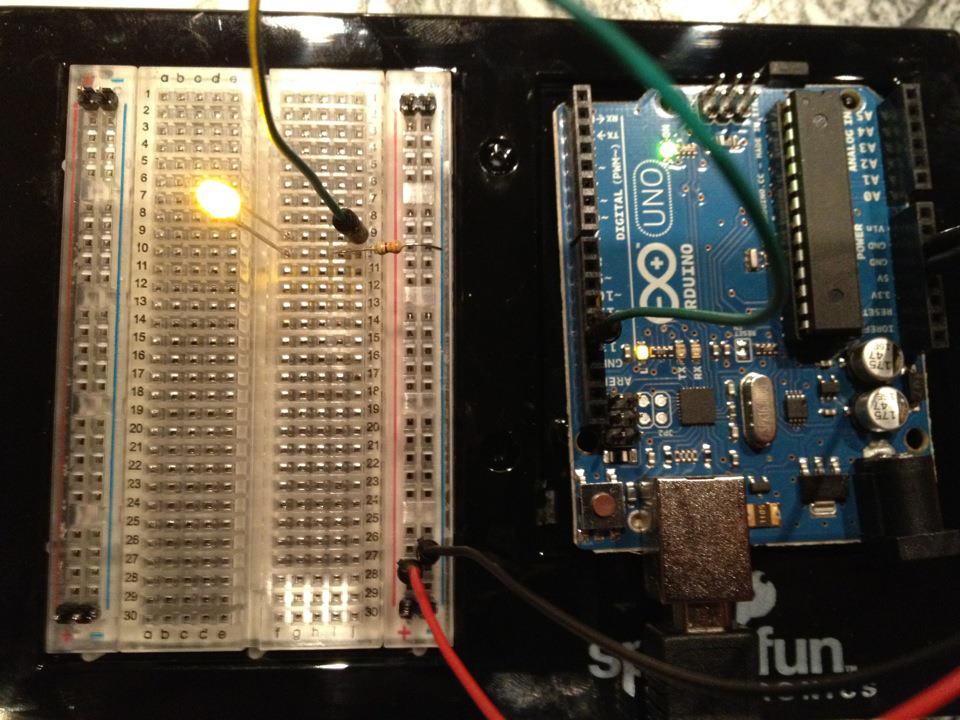
Projek elektronik pertama yang klasik! Bina litar LED berkedip LED menggunakan Arduino, papan roti, perintang, dan satu LED. Sempurna untuk pemula mutlak — tiada kimpalan diperlukan.
Arahan
1
1
Kumpulkan Komponen Anda
Kumpulkan Komponen Anda
Kumpulkan semua komponen yang disenaraikan di bawah. Tiada keperluan menyolder — semuanya pasang ke papan roti.
Bahan untuk langkah ini:
 SparkFun Inventor's Kit - V3.21 kit
Alatan diperlukan:
 Komputer dengan Arduino IDE
2
2
Skema Litar
Skema Litar
Aliran isyarat dari Arduino Pin 13 → perintang 220Ω (R1) → LED (D1) → GND. Perintang mengehadkan arus untuk melindungi LED.
Bahan untuk langkah ini:
 Arduino Uno R31 keping
 LED 5 mm1 keping
 Kit Perintang 1/4 W1 keping
3
3
Wayarkan Dengan Sempurna
Wayarkan Dengan Sempurna
- Masukkan LED ke dalam papan roti — kaki panjang (anod +) dalam satu baris, kaki pendek (katod −) di baris seterusnya.
- Masukkan satu kaki perintang 220Ω ke dalam baris yang sama dengan katod LED. Kaki lain dalam baris berasingan.
- Wayar pelompat dari baris anod LED → Pin Arduino 13.
- Wayar pelompat dari baris bebas perintang → Arduino GND.
Bahan untuk langkah ini:
LED 5 mm1 kepingKit Perintang 1/4 W1 keping Papan Roti1 keping
 Wayar Pelompat2 keping
4
4
Muat Naik Kod Blink
Muat Naik Kod Blink
Sambungkan Arduino melalui USB. Buka Arduino IDE, pilih Tools → Board → Arduino Uno, tampal kod, dan klik Upload.
blink.inoarduino
Bahan untuk langkah ini:
Arduino Uno R31 kepingAlatan diperlukan:
Komputer dengan Arduino IDE Kabel USB-B
5
5
PCB Susun Atur (Rujukan)
PCB Susun Atur (Rujukan)
Ini menunjukkan litar sebagai susun atur PCB. Tidak diperlukan untuk projek ini — papan roti berfungsi dengan sempurna — tetapi menunjukkan bagaimana litar yang sama akan kelihatan jika dikilang sebagai papan sebenar.
6
6
Uji dan Eksperimen
Uji dan Eksperimen
LED berkelip? Tahniah! Anda baru sahaja memprogram perkakasan.
Penyelesaian masalah:
Eksperimen seterusnya:
Penyelesaian masalah:
- LED tidak menyala? Balikkan LED — kaki panjang ke arah Pin 13.
- LED tetap menyala? Periksa kod dimuat naik dengan berjaya.
- Tiada yang berlaku? Sahkan pendawaian sepadan dengan skematik dalam Langkah 2.
Eksperimen seterusnya:
- Ubah nilai
delay()untuk mengawal kecepatan berkelip - Tambah LED kedua pada Pin 12
- Gantikan dengan RGB LED (lihat Litar SIK 3)
Bahan
6- SparkFun Inventor's Kit - V3.210% komisen1 kit$106.94
- Pemegang Tempat
- Pemegang Tempat
- 1 kepingPemegang Tempat
- Pemegang Tempat
- Pemegang Tempat
Alatan Diperlukan
3- Pemegang Tempat
- 1 vendor sell this, none ship to you yetPemegang Tempat
- Optional, pre-made jumper wires do not need strippingPemegang Tempat
Jumlah anggaran
Apa yang dibeli oleh pembuatnya. Bahan tanpa harga diperoleh di tempat anda membelinya.
CC0 Domain Awam
Blueprint ini dikeluarkan di bawah CC0. Anda bebas menyalin, mengubah, mengedar, dan menggunakan karya ini untuk sebarang tujuan, tanpa meminta kebenaran.
Sokong Pembuat dengan membeli produk melalui Blueprint mereka di mana mereka memperoleh Komisen Pembuat ditetapkan oleh Penjual, atau cipta iterasi baru Blueprint ini dan sertakan ia sebagai sambungan dalam Blueprint anda sendiri untuk berkongsi hasil.