
Reading a Potentiometer — SIK Circuit 2
Ìlànà
Parts & Introduction
Parts & Introduction
In this experiment you'll use a potentiometer (a variable resistor with a knob) to control how fast an LED blinks. This introduces analogRead() — reading voltage levels between 0 and 5V as values from 0 to 1023.
Parts Needed
- 1x Arduino Uno + USB cable
- 1x Breadboard
- 1x Potentiometer (10K)
- 1x LED (any color)
- 1x 330Ω Resistor
- 6x Jumper Wires
Àwọn ohun èlò fún ìgbésẹ̀ yìí:
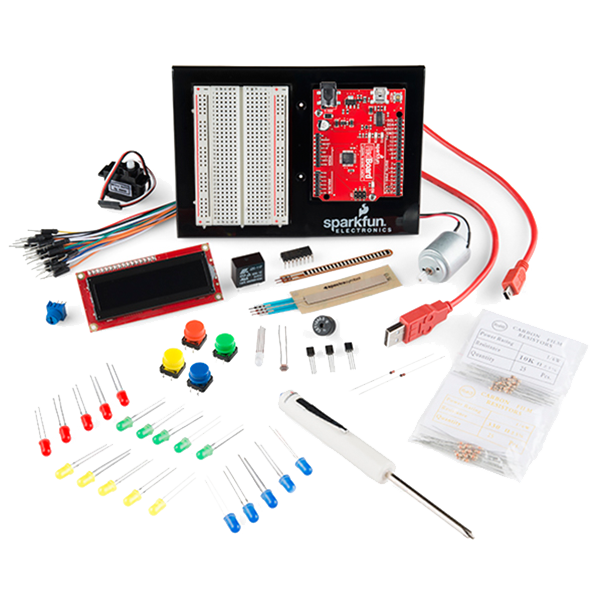 SparkFun Inventor's Kit - V3.21 ohun èlò
Àwọn irinṣẹ́ tí a nílò:
 Kọ̀ǹpútà Tí Ó Ní Arduino IDE
Hardware Hookup
Hardware Hookup
Wiring Instructions
- Place the potentiometer in the breadboard. It has three pins.
- Connect the left pin to GND and the right pin to 5V (or vice versa).
- Connect the middle pin (wiper) to Analog Pin A0.
- Place an LED in the breadboard. Connect the positive leg (longer) to Digital Pin 13.
- Connect the negative leg (shorter) through a 330Ω resistor to GND.
- Connect the 5V and GND rails on the breadboard to the Arduino.
Àwọn ohun èlò fún ìgbésẹ̀ yìí:
 Okùn Ìsopọ̀6 ẹyọ
Àwọn irinṣẹ́ tí a nílò:
 Pátákó Àdánwò
Arduino Code
Arduino Code
Open the Arduino IDE and upload the following sketch to your Arduino board.
Àwọn ohun èlò fún ìgbésẹ̀ yìí:
 Arduino Uno R31 ẹyọ
Àwọn irinṣẹ́ tí a nílò:
Kọ̀ǹpútà Tí Ó Ní Arduino IDETest & Experiment
Test & Experiment
What You Should See
The LED blinks faster or slower as you turn the potentiometer knob. At one extreme it blinks very fast, at the other it blinks slowly.
Troubleshooting
- Sporadically working: The potentiometer pins may not be making good contact. Press it firmly into the breadboard.
- Not working: Make sure the wiper (middle pin) goes to Analog pin 0, not Digital pin 0.
- LED not lighting: LEDs only work in one direction. Flip it around.
Experiments to Try
- Open the Serial Monitor and print the
sensorValueto see the raw numbers (0-1023). - Use
map()to convert the sensor range to a brightness range and control LED brightness withanalogWrite().
Àwọn ohun-èlò
6- 1 ohun èlò$108.26
- Àyè
- Àyè
- Àyè
- Àyè
- 1 ẹyọÀyè
Àwọn irinṣẹ́ tó nílò
2- 1 vendor sell this, none ship to you yetÀyè
CC0 Àgbègbè Gbogbogbò
Blueprint yìí ti jáde lábẹ́ CC0. O lè ṣe àdàkọ, yí padà, pín, àti lò láìsí ìyọ̀ǹda.
Ṣàtìlẹ́yìn Olùṣẹ́dá nípa rírà àwọn ọjà nipasẹ̀ Blueprint wọn Ẹ̀san Olùṣẹ́dá tí àwọn Olùtajà gbé kalẹ̀, tàbí ṣẹ̀dá àtúnṣe tuntun ti Blueprint yìí kí o sì fi sínú Blueprint rẹ gẹ́gẹ́ bí ìsopọ̀ láti pín owó-wíwọlé.