

Reading a Soft Potentiometer — SIK Circuit 10
Instrukcje
Parts & Introduction
Parts & Introduction
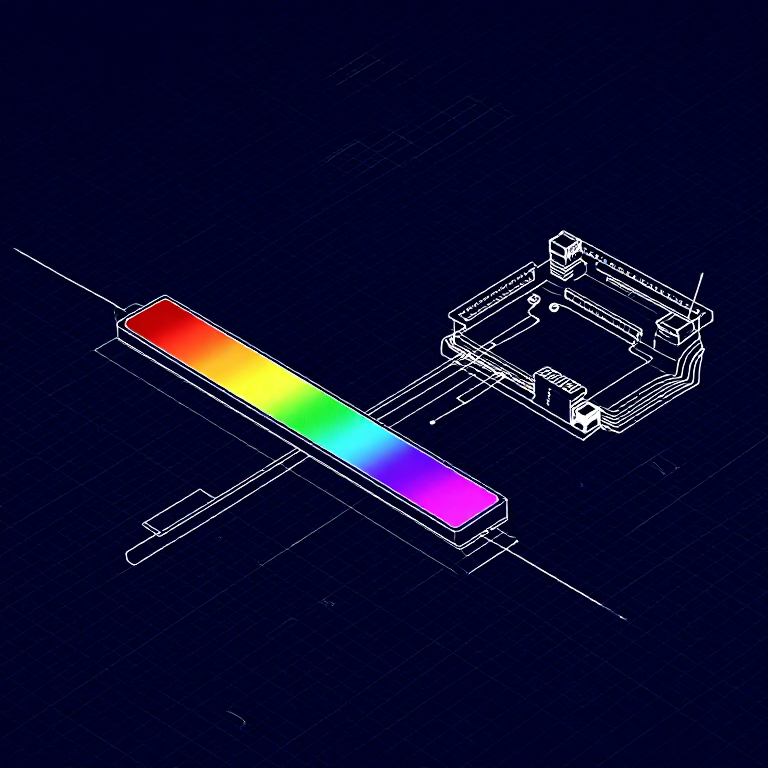
A soft potentiometer is a thin, flexible strip that acts as a variable resistor based on where you press. Combined with an RGB LED, you can create an intuitive color picker — slide your finger to change colors!
Parts Needed
- 1x Arduino Uno + USB cable
- 1x Breadboard
- 1x Soft Potentiometer
- 1x RGB LED (Common Cathode)
- 3x 330Ω Resistors
- 1x 10KΩ Resistor (pull-down)
- 9x Jumper Wires
Materiały do tego kroku:
 SparkFun Inventor's Kit - V3.21 zestaw
Potrzebne narzędzia:
 Komputer z Arduino IDE
Hardware Hookup
Hardware Hookup
Wiring Instructions
Soft Potentiometer
- Connect the middle pin to Analog Pin A0.
- Connect one side pin to 5V.
- Connect the other side pin to GND.
- Add a 10K pull-down resistor from Analog Pin A0 to GND.
RGB LED (pin order from flat edge: Red, GND, Green, Blue)
- Connect Red through 330Ω resistor to Pin 9.
- Connect GND (longest pin) to GND rail.
- Connect Green through 330Ω resistor to Pin 10.
- Connect Blue through 330Ω resistor to Pin 11.
Materiały do tego kroku:
 Taśma LED RGB 5050 (nieadresowalna)1 sztuka
 Płytka stykowa1 sztuka
 Przewody połączeniowe8 sztuk
Arduino Code
Arduino Code
Open the Arduino IDE and upload the following sketch to your Arduino board.
Materiały do tego kroku:
 Arduino Uno R31 sztuka
Potrzebne narzędzia:
Komputer z Arduino IDETest & Experiment
Test & Experiment
What You Should See
The RGB LED changes color as you slide your finger along the soft potentiometer strip. The color smoothly transitions through the spectrum: red → green → blue → red.
Troubleshooting
- LED dark or wrong color: Four pins close together are easy to misplace. Verify each RGB LED connection.
- Bizarre color jumps: Pressing the soft pot in multiple spots simultaneously gives unpredictable results. Use one finger.
Experiments to Try
- Add Serial output to see the raw sensor values as you slide.
- Map the soft pot to servo position instead of color.
Materiały
8- SparkFun Inventor's Kit - V3.210% prowizji1 zestaw$104.30
- Zastępnik
- Zastępnik
- Zastępnik
- Zastępnik
- 1 sztukaZastępnik
- 3 sztukZastępnik
- Zastępnik
Wymagane narzędzia
1- Zastępnik
CC0 Domena publiczna
Ten plan jest udostępniany na licencji CC0. Możesz go swobodnie kopiować, modyfikować, rozpowszechniać i wykorzystywać do dowolnych celów, bez konieczności uzyskiwania zgody.
Wesprzyj Makera kupując produkty przez jego plan, za co zarabia Prowizja Makera ustalony przez sprzedawców, lub stwórz nową iterację tego planu i dołącz go jako połączenie w swoim własnym planie, aby dzielić się przychodami.