МИСТЕЦТВО
КРАСА ТА ЗДОРОВ'Я
РЕМЕСЛО
КУЛЬТУРА ТА ІСТОРІЯ
РОЗВАГИ
СЕРЕДОВИЩЕ
ЇЖА ТА НАПІЇ
ЗБОРНА ІНЖЕНЕРІЯ
НАУК
СПОРТ
ТЕХНОЛОГІЯ
НОСИМО
Перекладено
BLUEPRINT NFT


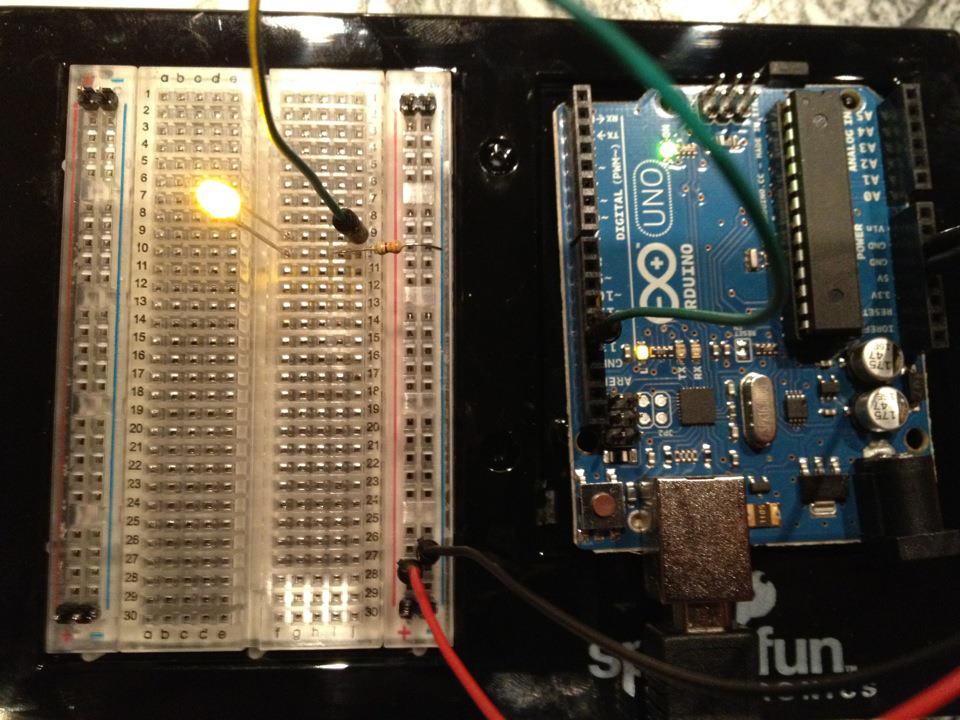
Мигаючий LED — Ваш перший проект Arduino
Класичний перший проект в електроніці! Зберіть схему мигаючого LED за допомогою Arduino, макетної плати, резистора та одного LED. Ідеально для абсолютних новачків — паяння не потрібно.
Інструкції
1
1
Зберіть свої компоненти
Зберіть свої компоненти
Зберіть усі компоненти, перелічені нижче. Паяння не потрібне — усе підключається до макетної плати.
Матеріали для цього кроку:
 SparkFun Inventor's Kit - V3.21 набір
Необхідні інструменти ({count})
 Комп'ютер з Arduino IDE
2
2
Схема електричної схеми
Схема електричної схеми
Сигнал тече від Arduino Pin 13 → резистор 220Ω (R1) → LED (D1) → GND. Резистор обмежує струм для захисту LED.
Матеріали для цього кроку:
 Arduino Uno R31 штука
 Світлодіод 5 мм1 штука
 Набір резисторів 1/4 Вт1 штука
3
3
Підключіть дроти
Підключіть дроти
- Вставте LED на макетну плату — довга ніжка (анод +) в один рядок, коротка ніжка (катод −) в наступний.
- Вставте одну ніжку резистора 220Ω у той же рядок, що й катод LED. Іншу ніжку в окремий рядок.
- Перемичка з рядка анода LED → Arduino Pin 13.
- Перемичка з вільного рядка резистора → Arduino GND.
Матеріали для цього кроку:
Світлодіод 5 мм1 штукаНабір резисторів 1/4 Вт1 штука Макетна плата1 штука
 З'єднувальні дроти2 штук
4
4
Завантажити код Blink
Завантажити код Blink
Підключіть Arduino через USB. Відкрийте Arduino IDE, оберіть Tools → Board → Arduino Uno, вставте код і натисніть Upload.
blink.inoarduino
Матеріали для цього кроку:
Arduino Uno R31 штукаНеобхідні інструменти ({count})
Комп'ютер з Arduino IDE Кабель USB-B
5
5
PCB Макет (Довідка)
PCB Макет (Довідка)
Це показує схему як макет PCB. Не потрібно для цього проекту — макетна плата працює чудово — але показує, як виглядала б та сама схема, якби вона була виготовлена як реальна плата.
6
6
Тест та експеримент
Тест та експеримент
LED блимає? Вітаємо! Ви щойно запрограмували обладнання.
Усунення несправностей:
Наступні експерименти:
Усунення несправностей:
- LED не світиться? Переверніть LED — довга ніжка до Pin 13.
- LED залишається увімкненим? Перевірте, чи успішно завантажено код.
- Нічого не відбувається? Перевірте, чи схема проводки відповідає схемі на кроці 2.
Наступні експерименти:
- Змініть значення
delay(), щоб контролювати швидкість блимання - Додайте другий LED на Pin 12
- Замініть на RGB LED (див. SIK Circuit 3)
Матеріали
6- SparkFun Inventor's Kit - V3.210% комісія1 набір$106.94
- Заповнювач
- Заповнювач
- 1 штукаЗаповнювач
- Заповнювач
- Заповнювач
Необхідні інструменти
3- Заповнювач
- 1 vendor sell this, none ship to you yetЗаповнювач
- Optional, pre-made jumper wires do not need strippingЗаповнювач
Орієнтовна сума
Те, що купив майстер. Матеріали без ціни ви купуєте там, де знайдете.
CC0 Суспільне надбання
Це креслення випущено під ліцензією CC0. Ви можете вільно копіювати, змінювати, поширювати та використовувати цю роботу для будь-яких цілей без запиту дозволу.
Підтримайте мейкера, купуючи продукти через його креслення, де він отримує Комісію мейкера встановлену вендорами, або створіть нову ітерацію цього креслення та включіть його як зв'язок у власне креслення для розподілу доходу.