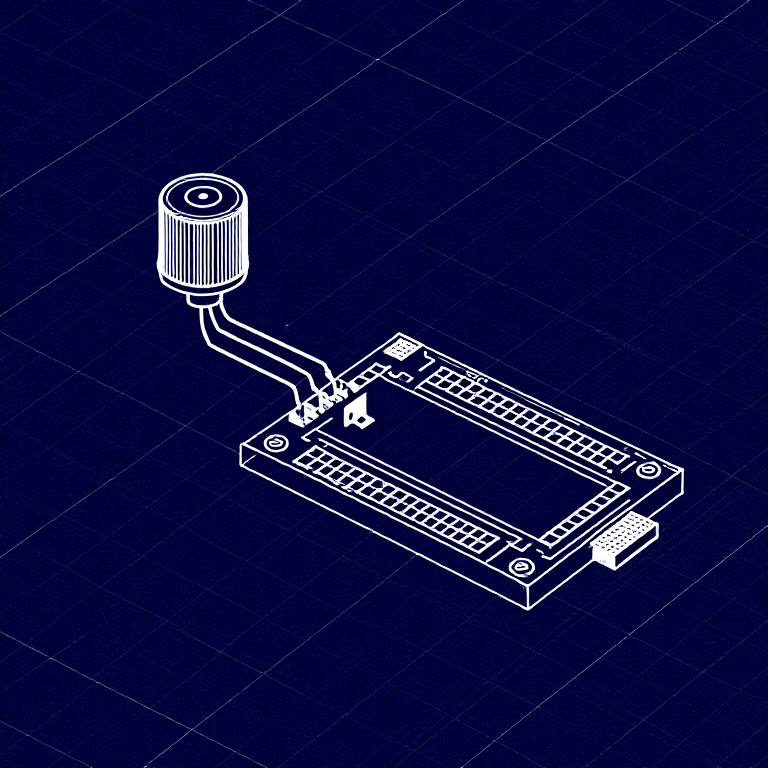


Reading a Potentiometer — SIK Circuit 2
Imiyalelo
Parts & Introduction
Parts & Introduction
In this experiment you'll use a potentiometer (a variable resistor with a knob) to control how fast an LED blinks. This introduces analogRead() — reading voltage levels between 0 and 5V as values from 0 to 1023.
Parts Needed
- 1x Arduino Uno + USB cable
- 1x Breadboard
- 1x Potentiometer (10K)
- 1x LED (any color)
- 1x 330Ω Resistor
- 6x Jumper Wires
Izinto zokwakha zalesi sinyathelo:
 SparkFun Inventor's Kit - V3.21 ikhithi
Amathuluzi adingekayo:
 Ikhompyutha Ene-Arduino IDE
Hardware Hookup
Hardware Hookup
Wiring Instructions
- Place the potentiometer in the breadboard. It has three pins.
- Connect the left pin to GND and the right pin to 5V (or vice versa).
- Connect the middle pin (wiper) to Analog Pin A0.
- Place an LED in the breadboard. Connect the positive leg (longer) to Digital Pin 13.
- Connect the negative leg (shorter) through a 330Ω resistor to GND.
- Connect the 5V and GND rails on the breadboard to the Arduino.
Izinto zokwakha zalesi sinyathelo:
 Ibhodi Lokuhlola1 ucezu
 Izintambo Zokuxhuma6 izicucu
Arduino Code
Arduino Code
Open the Arduino IDE and upload the following sketch to your Arduino board.
Izinto zokwakha zalesi sinyathelo:
 Arduino Uno R31 ucezu
Amathuluzi adingekayo:
Ikhompyutha Ene-Arduino IDETest & Experiment
Test & Experiment
What You Should See
The LED blinks faster or slower as you turn the potentiometer knob. At one extreme it blinks very fast, at the other it blinks slowly.
Troubleshooting
- Sporadically working: The potentiometer pins may not be making good contact. Press it firmly into the breadboard.
- Not working: Make sure the wiper (middle pin) goes to Analog pin 0, not Digital pin 0.
- LED not lighting: LEDs only work in one direction. Flip it around.
Experiments to Try
- Open the Serial Monitor and print the
sensorValueto see the raw numbers (0-1023). - Use
map()to convert the sensor range to a brightness range and control LED brightness withanalogWrite().
Izinto
7- SparkFun Inventor's Kit - V3.2ikhomishini engu-10%1 ikhithi$106.76
- Isibambeli
- Isibambeli
- Isibambeli
- Isibambeli
- Isibambeli
- 1 ucezuIsibambeli
Amathuluzi Adingekayo
1- Isibambeli
CC0 Isizinda Somphakathi
Le blueprint ikhishwe ngaphansi kwe-CC0. Ukhululekile ukukopisha, ukuguqula, ukusabalalisa, nokusebenzisa ngaphandle kwemvume.
Sekela uMenzi ngokuthenga imikhiqizo nge-Blueprint yabo IKhomishane Yomenzi kumiswe ngabathengisi, noma dala inguqulo entsha yale Blueprint bese uyifaka njengoxhumaniso ku-Blueprint yakho ukuze wabelane ngemali engenayo.